Wings Fight Mobile & Console Dogfight Tips
Touch layouts, gamepad habits, performance, and how to survive 10-player skies without PC micro-aim.
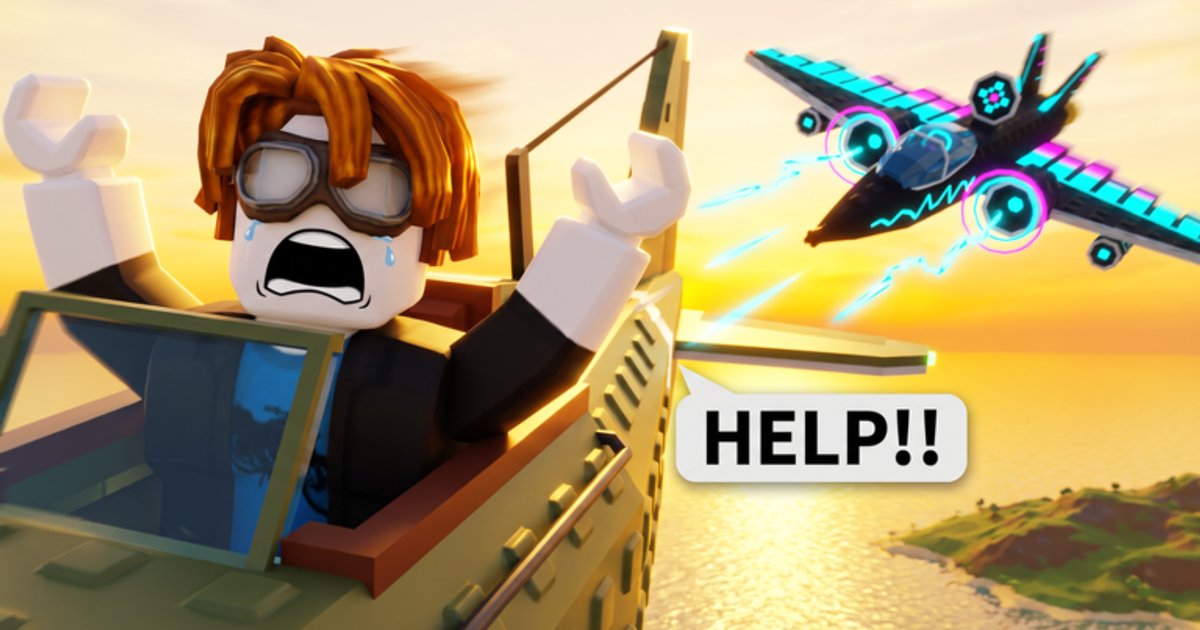
Wings Fight runs through Roblox on phones, tablets, and consoles as well as PC. The fantasy stays the same — arcade aerial combat, 30+ airplanes, mid-air repairs, special abilities, servers capped at 10 players — but the inputs change everything. This guide focuses on mobile touch and console-via-Roblox habits that keep you alive when the sky gets loud. Exact binds still live in in-game Settings; treat that menu as law after every Clickingg patch. Pair this page with the full Controls Guide, then apply fight theory from the Combat Guide and the first-hour loop in Getting Started.
You do not need PC flick aim to climb. You need reachable buttons, honest sensitivity, simple vectors, and the discipline to disengage before a furball eats your thumbs.
Shared goals on every non-PC device
- See the horizon — landscape on mobile; sit far enough from a TV on console that pitch does not invert your brain.
- Reach fire and ability without covering the pipper — layout beats cosmetics.
- Prefer clear climbs, repairs, and dives over tiny corrective spam.
- Keep frame time stable — pretty clouds lose to late ability taps.
- Assume third parties — ten players fit in one camera mess on a small screen.
If those five fail, no hangar purchase will feel “broken” for the right reason.
Mobile — touch targets and layout
Place controls for your thumbs, not the default art
- Put the move stick where your left thumb rests naturally in landscape.
- Keep fire and special ability on the right, separated enough that one fat-finger does not press both.
- Enable larger buttons or UI scale options if Roblox or the experience exposes them.
- Avoid stacking ability under the exact spot you drag for fine aim.
- Lock rotation so a pocket bump does not flip you to portrait mid-merge.
Spend two quiet lives only adjusting layout. Fighting while rebuilding your HUD teaches panic, not dogfighting.
Sensitivity that tracks, not spins
Start medium-low look sensitivity. Fly figure-eights at mid altitude until the nose follows intent. Raise in small steps only if you cannot keep a turning silhouette in frame. Ultra-high mobile sensitivity copied from ground shooters makes aerial lead impossible.
Simple mobile win vectors
On a phone, win with geometry:
- Climb to a readable band of sky.
- Scoop a safe repair when the glow is not camped.
- Dive with guns roughly pre-aligned.
- Take one pass; extend; reassess third parties.
- Spend the ability on a committed target, not the first pixel that moves.
That loop mirrors PC fundamentals from the combat guide without demanding micro-corrections your screen cannot show. Pickup timing depth lives in Abilities & Repairs.
Mobile performance checklist
- Lower graphics until input feels immediate.
- Close background apps that steal RAM mid-fight.
- Prefer Wi-Fi with stable ping over congested mobile data when practicing new planes.
- Heat-throttle is real — short focused sets beat a melted hour of tilt.
- If UI widgets fail to appear (codes, shop), rejoin after load; soft UI desync happens on weak connections.
Console — gamepad via Roblox
Console players using Roblox on pad should treat sticks like flight tools, not twin-stick arena defaults.
Typical pad mapping mindset
- Left stick — bank / pitch blend; soft pressure beats full deflection held forever.
- Right stick — look / fine aim when the camera allows.
- Triggers — often fire and throttle or secondary modifiers.
- Bumpers / face buttons — abilities, camera recenter, boost if exposed.
Confirm every action in Settings after patches. Clickingg can remap prompts without a wiki update landing the same day.
Dead zones and drift
If the plane drifts with sticks centered, raise dead zone slightly in Roblox or system settings. If the nose feels like soup, lower dead zone carefully and add a little stick sensitivity. Recalibrate when you switch between TV and monitor distances.
Console camera habits
- Recenter after wild pitches so the next merge starts clean.
- Leave space above a chase target in frame to see climb attempts.
- When fleeing, look toward escape altitude and repair lanes, not only the threat marker.
- If chase cam versus free look exists, try a full session on each; chase cam can reduce nausea on big TVs.
Surviving 10-player chaos on small screens
Full lobbies create visual noise: tracers, repair glows, ability VFX, and name tags. On mobile especially, information diet matters.
- Do not track more than two relevant contacts at once — your current merge and the highest threat above you.
- After a kill, assume a spectator dive; climb or lateral exit immediately (Dogfight Habits).
- Third-party with a timer: one high-percentage pass, then leave if both turn on you.
- Avoid parking on the same repair beacon everyone watched you leave.
- Prefer flexible or tank archetypes early if your inputs are coarse — see Best Starter Planes and the Planes Guide.
Glass cannons punish layout mistakes harder on touch. Earn them later.
Ability buttons under pressure
Specials decide escapes and confirms. On mobile, practice the sequence slowly:
steer stable → tap ability → resume steer → fire
If your ability finger steals the aim thumb every time, move the button. On pad, bind specials to a bumper you can hit without releasing the stick for a full second. Holding forever means you die with the tool unused; mashing on cooldown advertises your timing to the lobby.
Aim expectations — be fair to yourself
PC mouse tracking will out-fine-aim most touch setups. That is fine. Mobile and console pilots climb by:
- Better altitude discipline
- Better repair routing
- Better disengage timing
- Smarter hangar roles (tanks and flexible fighters)
- Cleaner third-party exits
Measure progress in survival and consistent damage, not in copied highlight reels. Currency still comes from fair play — Currency Farming — and optional Codes when strings exist.
Device-switch hygiene
Many players hop phone → pad → PC in one week. Muscle memory drifts.
- Open Settings and note binds on the device you are about to main tonight.
- Run the sensitivity figure-eight drill for two minutes.
- Smoke-test ability + fire together before a serious lobby.
- Do not judge a plane after a device switch until ten lives pass.
- Use the Tools Hub checklist mindset after patches or hardware changes.
Common mobile / console mistakes
- Portrait dogfights that hide vertical threats
- Fire button under the steering thumb
- Max graphics with 20 FPS ability lag
- Flat-turning every interceptor instead of extending
- Ignoring Settings after a client update
- Buying glass while still missing the ability button in panic
- Blaming “broken planes” for layout problems
Fifteen-minute device warm-up
- Settings binds + layout check (3 minutes).
- Figure-eights and soft stick/touch pressure (4 minutes).
- One repair route without forcing kills (4 minutes).
- Two short engagements with mandatory disengage practice (4 minutes).
Then enter real 10-player skies with habits from Getting Started and Combat. When hangar questions appear, use role advice from Best Starter Planes and letter bands on the Planes Tier List.
Patch days on handheld and TV
Early Wings Fight clients move quickly — Roblox showed a notable update window around November 12, 2026 after the November 4 launch. On patch days, rejoin once, re-open Settings, and retest touch zones before you rewrite the hangar. UI scale and prompt changes hit mobile hardest.
Bottom line
Mobile and console Wings Fight rewards readable layouts, stable performance, and simple energy paths. Reach your ability button, keep the horizon honest, route safe repairs, and leave bad merges on purpose. Master those, and a flexible starter airframe will carry you further than a glass cannon you cannot aim with a thumb.
Clear skies — verify Settings, shrink the chaos, and fly vectors your screen can actually show.
Frequently Asked Questions
Quick answers to the most common questions.
Can I play Wings Fight on mobile and console?
Yes. Wings Fight runs through Roblox on PC, mobile, and console. Confirm binds in Settings on each device after patches.
What is the biggest mobile tip for dogfights?
Use landscape, enlarge and separate fire/ability buttons, start medium-low sensitivity, and win with climb–repair–dive vectors instead of tiny flicks.
Should mobile players buy glass cannons early?
Usually no. Prefer tanks or flexible mid-tier fighters until layout, repairs, and disengages feel reliable on touch.
Why does my ability feel late on phone?
Often graphics/FPS lag or a button placed under your aim thumb. Lower graphics, move the ability control, and practice the steer–ability–fire sequence in empty air.
Where do I learn binds and fight theory next?
Controls Guide for device mapping, Combat Guide for energy and angles, Getting Started for the first-hour loop, and Best Starter Planes for hangar roles.